1. Quick start
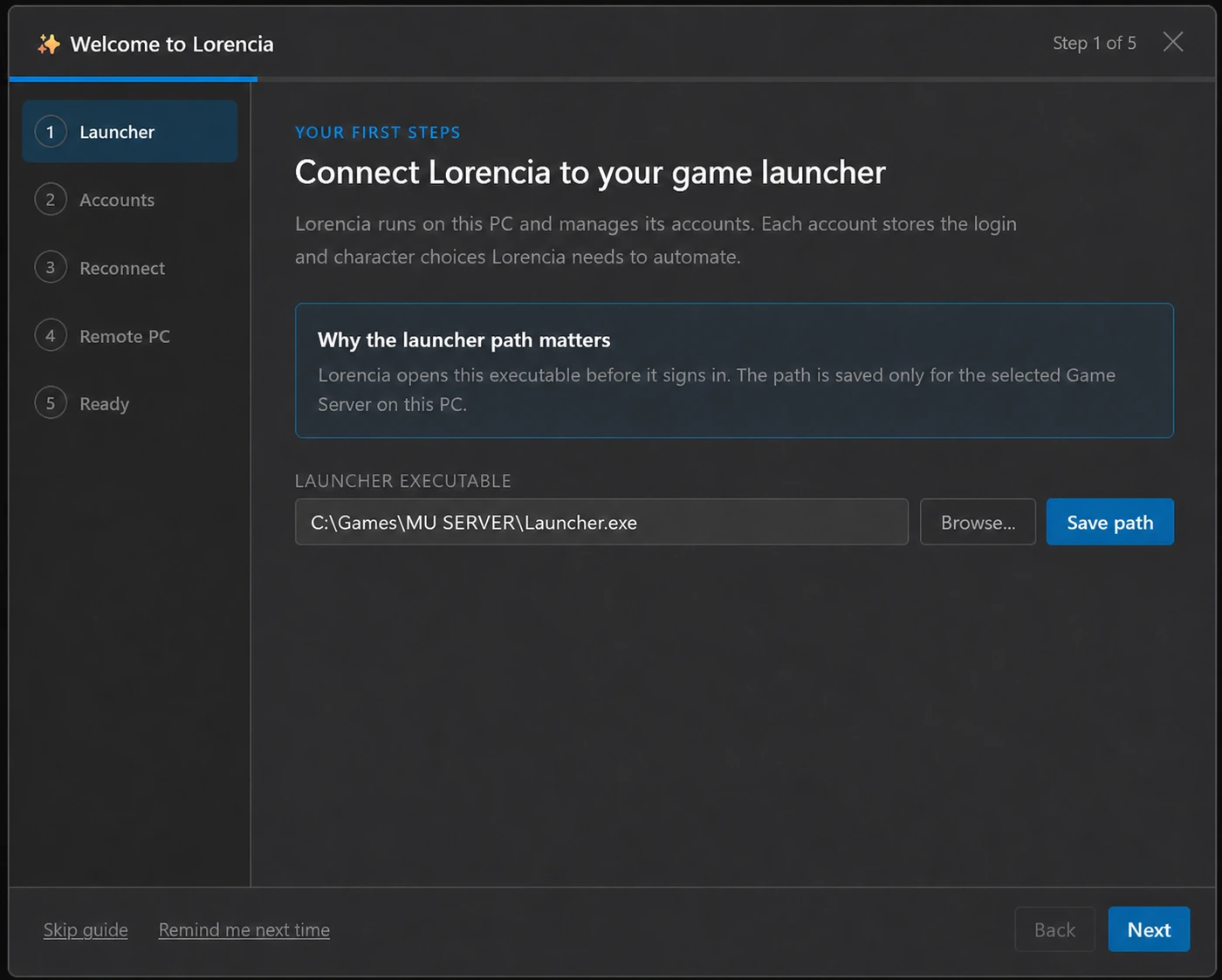
- Install Lorencia, choose your language and Game Server, and complete the Welcome Guide.
- Open Settings → General, select the launcher for the current Game Server, and save.
- Add one account with its exact username, character name, server number, and character slot.
- Press the account's Run button and watch the first login. If something is wrong, press Esc.
- When one account works, add the others and use Run All, a party action, or a saved selection.
2. Accounts and resolutions
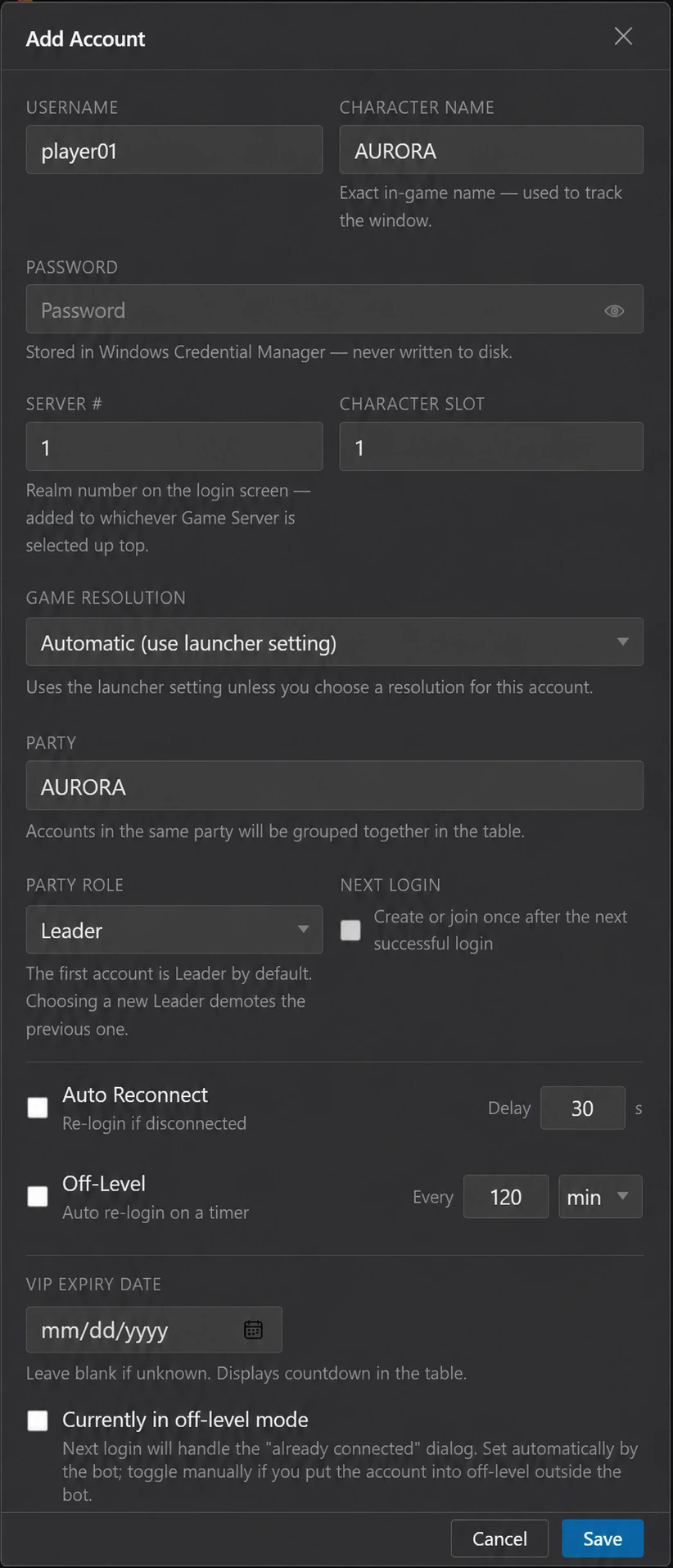
Use + Account to add a single account. The Character Name in Lorencia must exactly match the character's name in the game so monitoring works correctly. Character Slot starts at 1 from the first character shown by the game.
An account can use Automatic (use launcher setting) or its own resolution. If the launcher is using an unsupported resolution, Lorencia selects the closest available option before starting.
Select several accounts to edit shared fields. Leave a field unchanged when each account should keep its current value. Passwords are stored in Windows Credential Manager and a blank password field keeps the stored password.
3. Run, watch, and stop automation
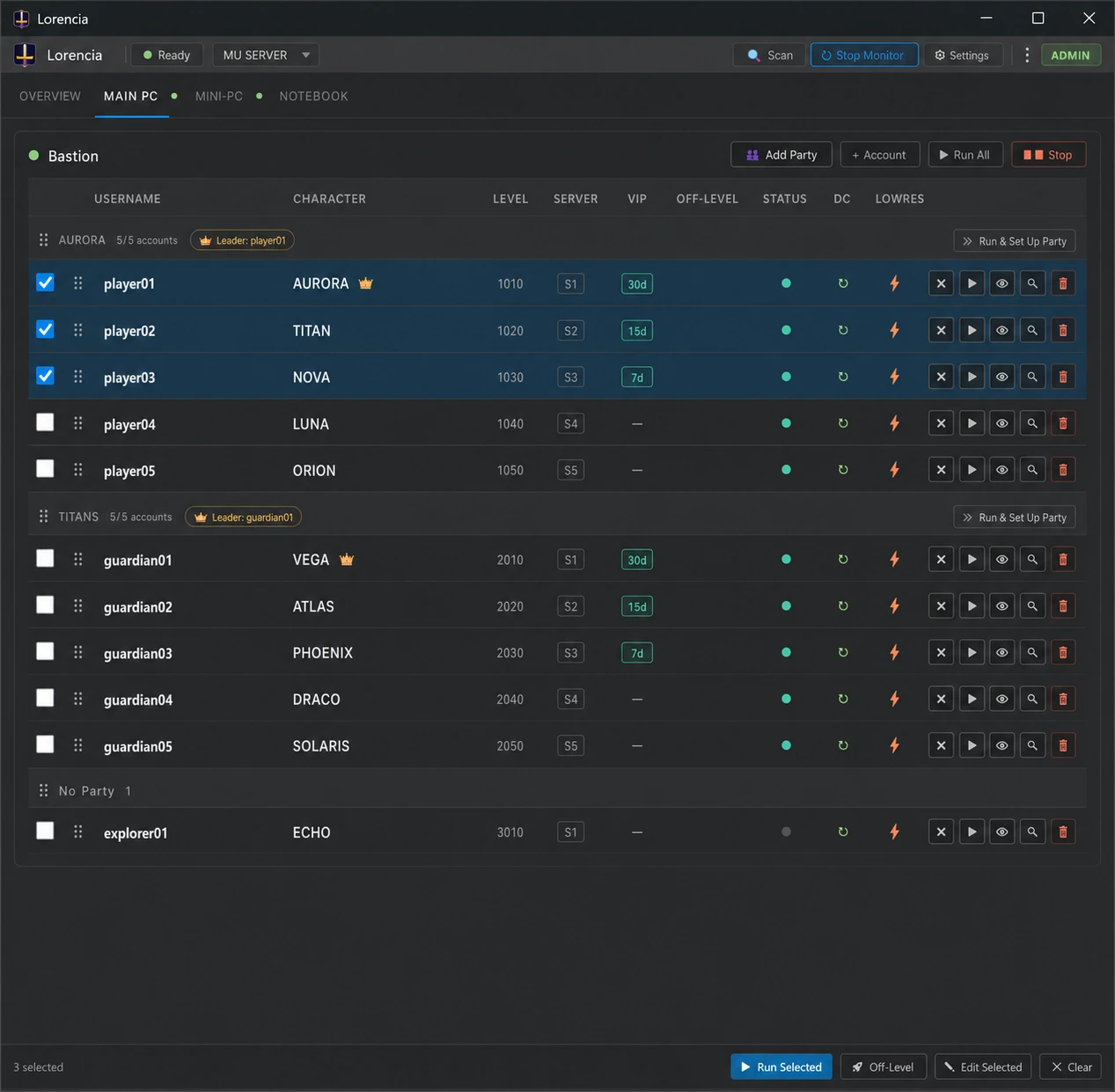
While an automation is active, Lorencia shows a Stop control and the header explains that Esc stops automation. Esc is the universal emergency stop for login, party, and manual Off-Level work.
If Helper cannot be activated, Lorencia shows a warning and continues with the remaining Anti-Lag, Ctrl+F, Party, Off-Level, and queued-account actions. Only Stop or Esc cancels the run.
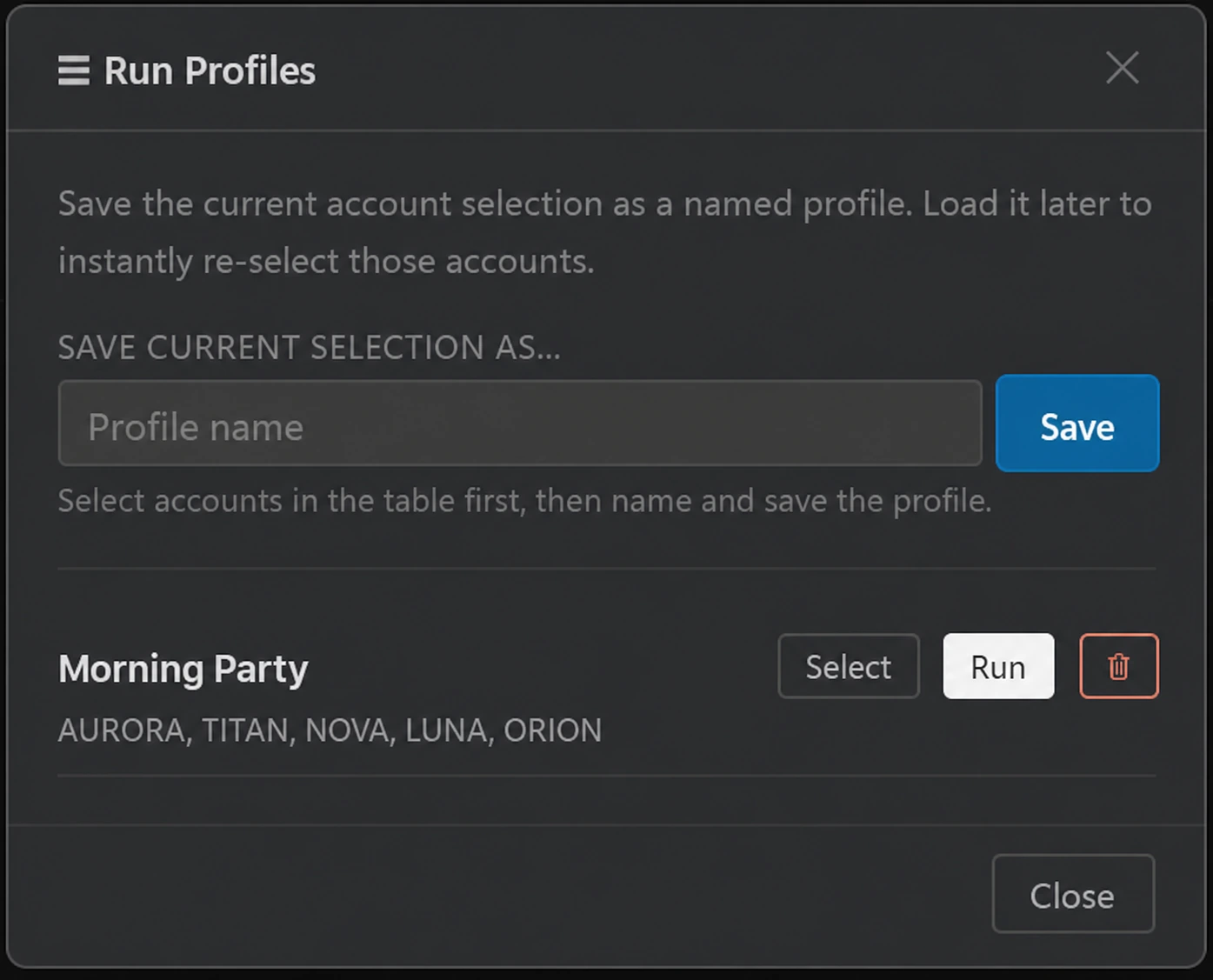
Use Profiles to save account selections you run often. Schedule can start a saved selection or all configured accounts at a chosen time, while Layout arranges their game windows.
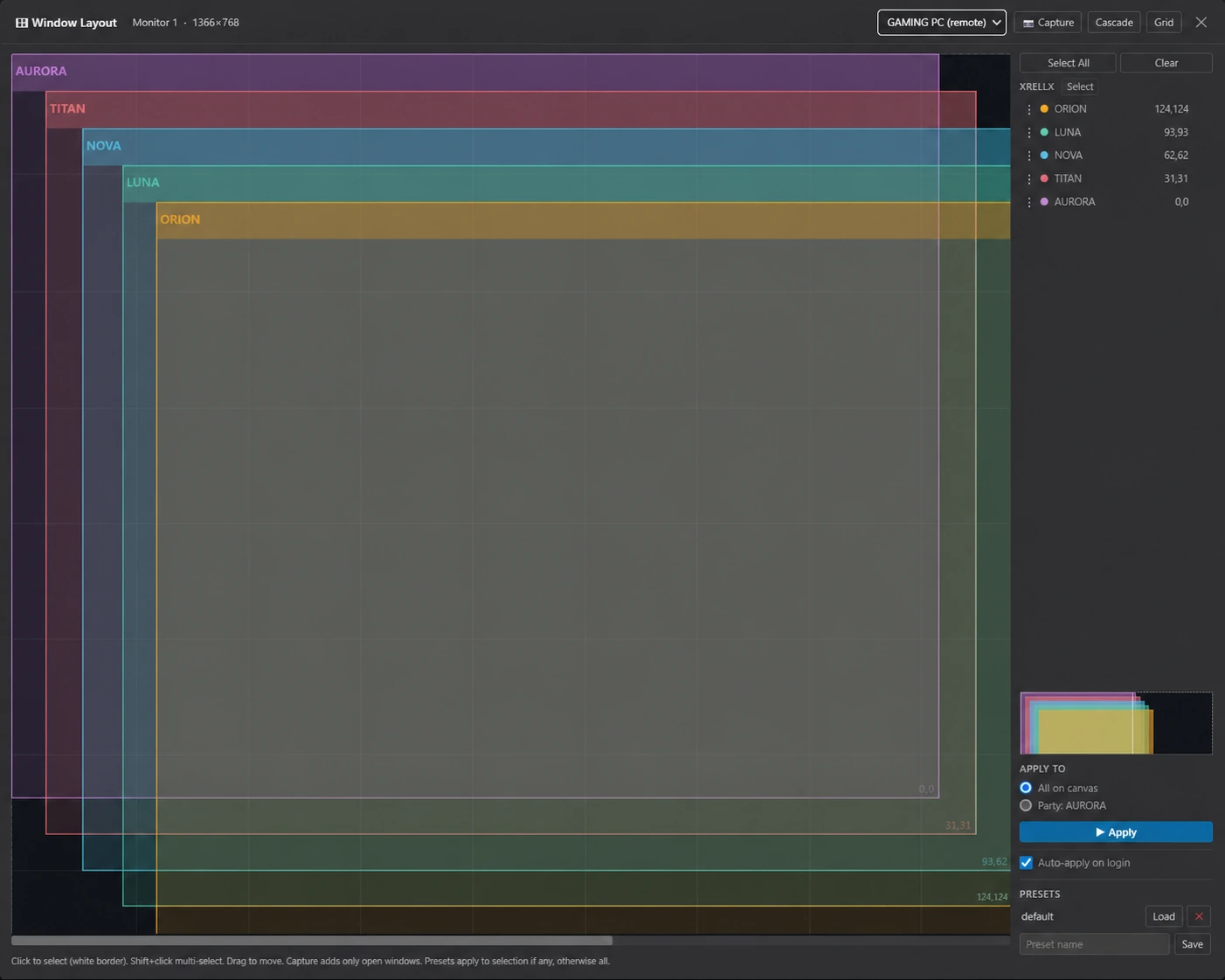
4. DC Monitor, reconnect, and Off-Level
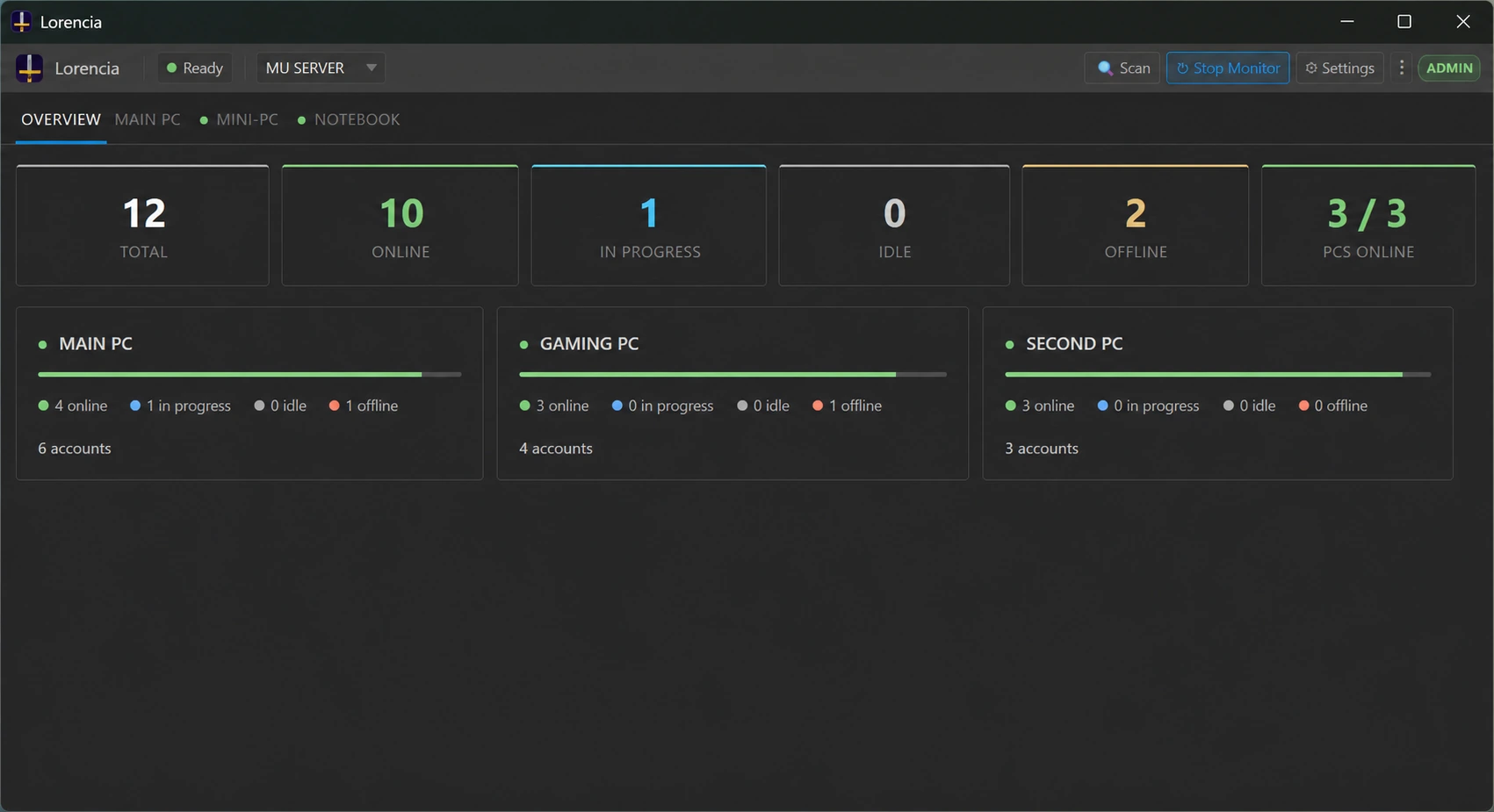
Enable Auto Reconnect on each account that should reconnect, then turn on the DC Monitor. The global monitor control enables monitoring across Bastion and connected Sentinels. Turning it off from the Bastion view disables Bastion monitoring; use each Sentinel's own control to disable that remote machine.
When the monitor starts, it watches the accounts that are currently connected. It does not open accounts that were already offline.
Manual Off-Level acts only on selected accounts. Lorencia temporarily disables Ctrl+F when necessary and tries again automatically if Off-Level does not complete. Press Esc to cancel.
Mobile “account disconnected” or “may have died” notifications are sent only while the global monitor is enabled. Desktop options are configured separately under Alerts.
5. Parties
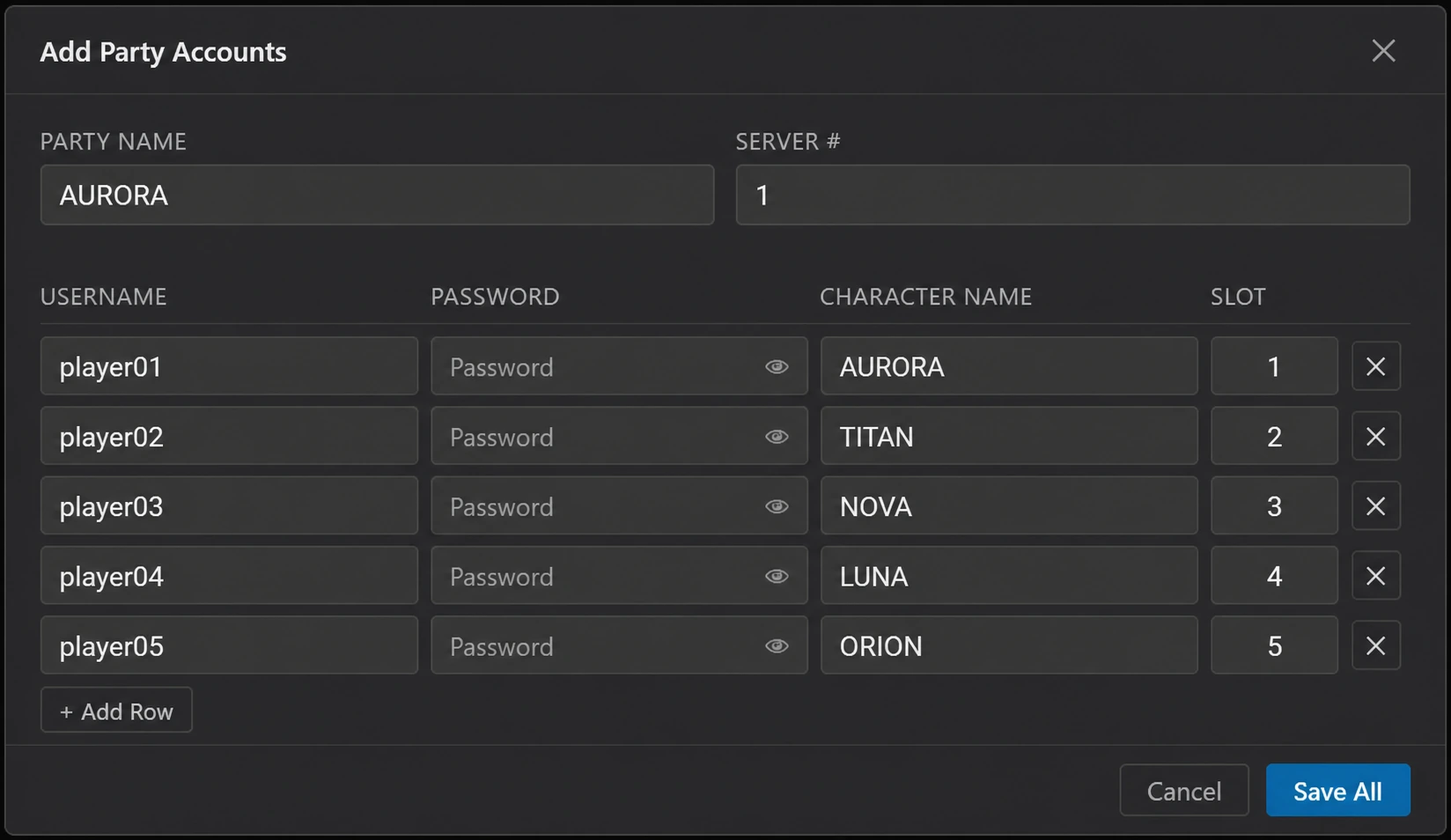
A party contains at most five accounts: one Leader and up to four Members. Party names are unique within the current Game Server. The first account added to a new party becomes Leader by default; edit an account row to choose another leader.
Run & Set Up Party recognises already connected characters, logs in missing ones, temporarily disables Ctrl+F where needed, has the Leader create the party, and has Members join it. Ctrl+F is restored afterward when it was previously active.
Use the account editor's Next login option when only one account should create or join its configured party after its next successful login.
6. Add and manage a remote PC with Sentinel
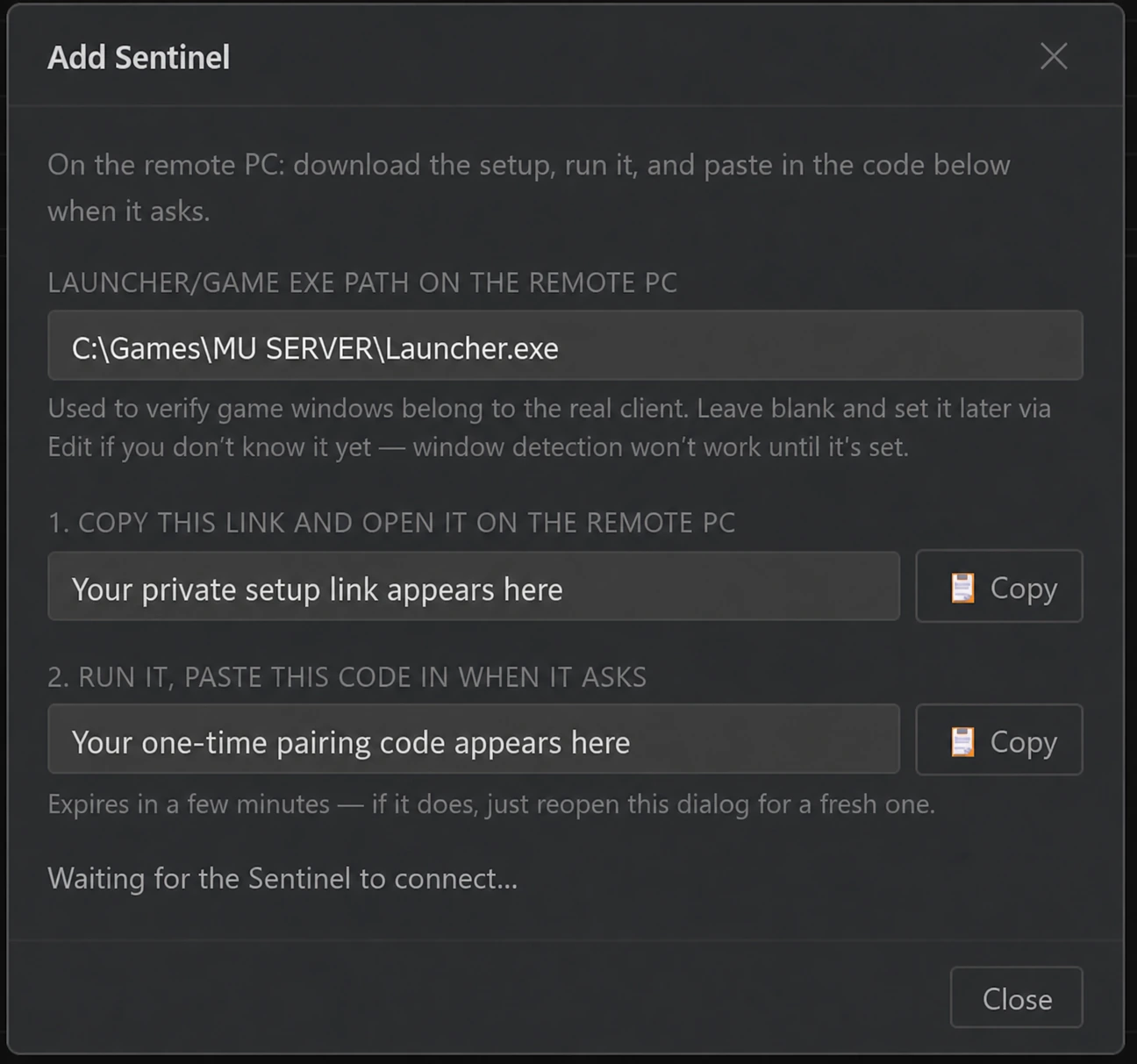
- On Bastion, open Settings → Sentinels → Add Sentinel.
- Enter the launcher path used on the remote PC, then open the generated setup link on that PC.
- Run the Sentinel installer and enter the single-use pairing code while it is valid.
- Wait for the Sentinel to appear online, then add or sync its accounts from the Sentinel tab.
Bastion and Sentinel perform the same automation. Each PC keeps its own settings, layouts, monitor state, and available resolutions. Remote changes show progress until they are applied.
If a Sentinel is offline, check that its PC is awake, connected to the internet, updated, and running Lorencia before pairing again.
7. Web Dashboard and mobile notifications
Open More → Web Dashboard in Bastion and scan the QR code with your phone. Opening another dashboard on the same type of device replaces the previous one.
On mobile, accept the install prompt to add Lorencia to the Home Screen. On iPhone, follow the displayed Share → Add to Home Screen instructions.
Use the bell to enable notifications and allow the browser permission. Test notification verifies delivery. Real disconnect/helper alerts require the global DC Monitor to be running.
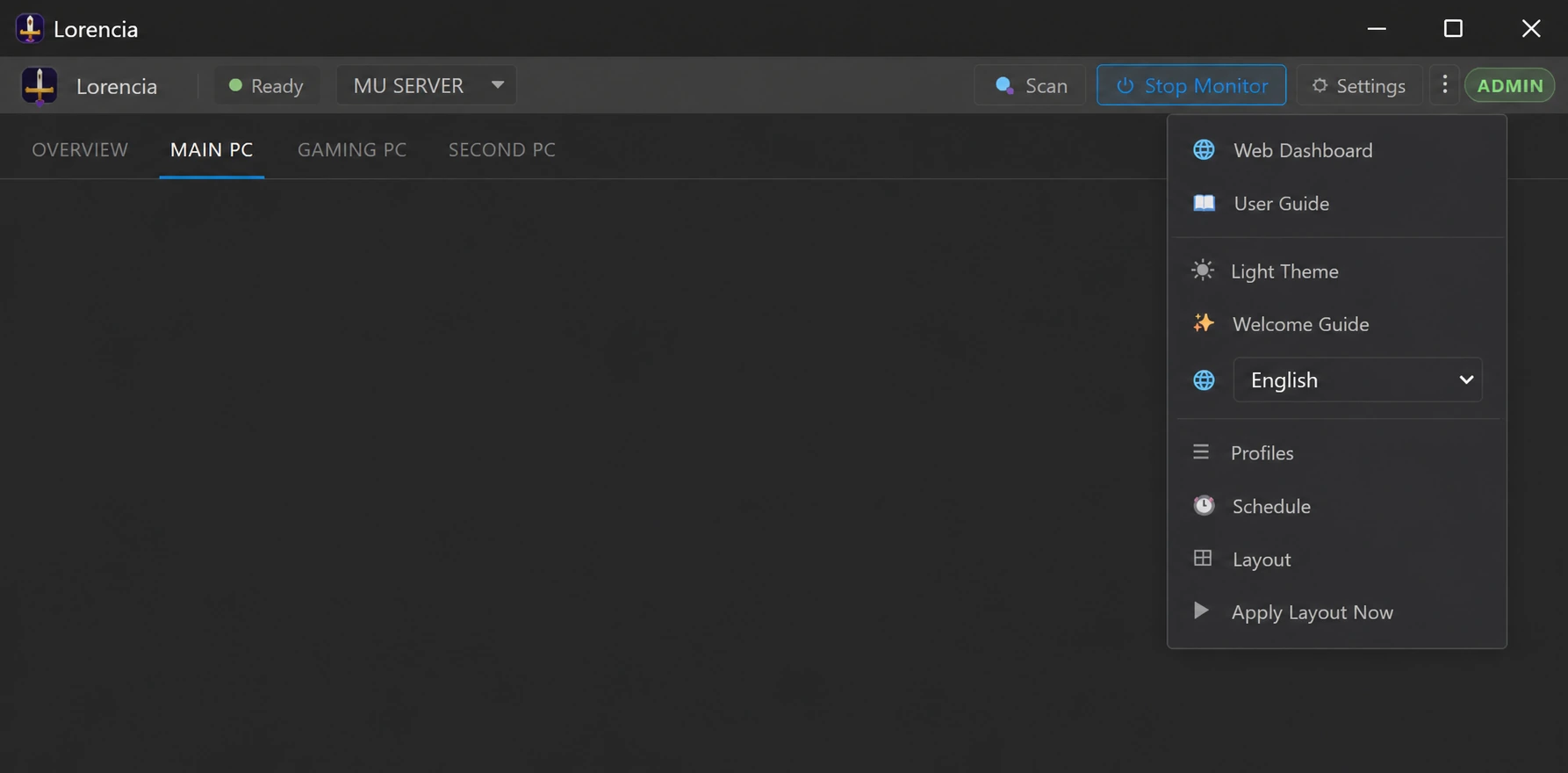
8. Settings that affect automation
| Area | What it controls |
|---|---|
| General | PC name, launcher path, account defaults, post-login Helper/Ctrl+F, and startup run. |
| Anti-Lag | Choose which Anti-Lag actions run before character selection or after entering the world. |
| Timings | Adjust the waits between login steps when a PC or connection needs more time. |
| Performance | Balance how often Lorencia refreshes status and live preview with your PC's performance. |
| Alerts | Desktop, sound, event, and mobile-related alert choices. |
| Sentinels | Pairing, removal, remote launcher path, updates, and machine-specific settings. |
Use the smallest reliable timing for each PC. Modifier hold controls how long Ctrl, Alt, or Shift is held before the next key is pressed.
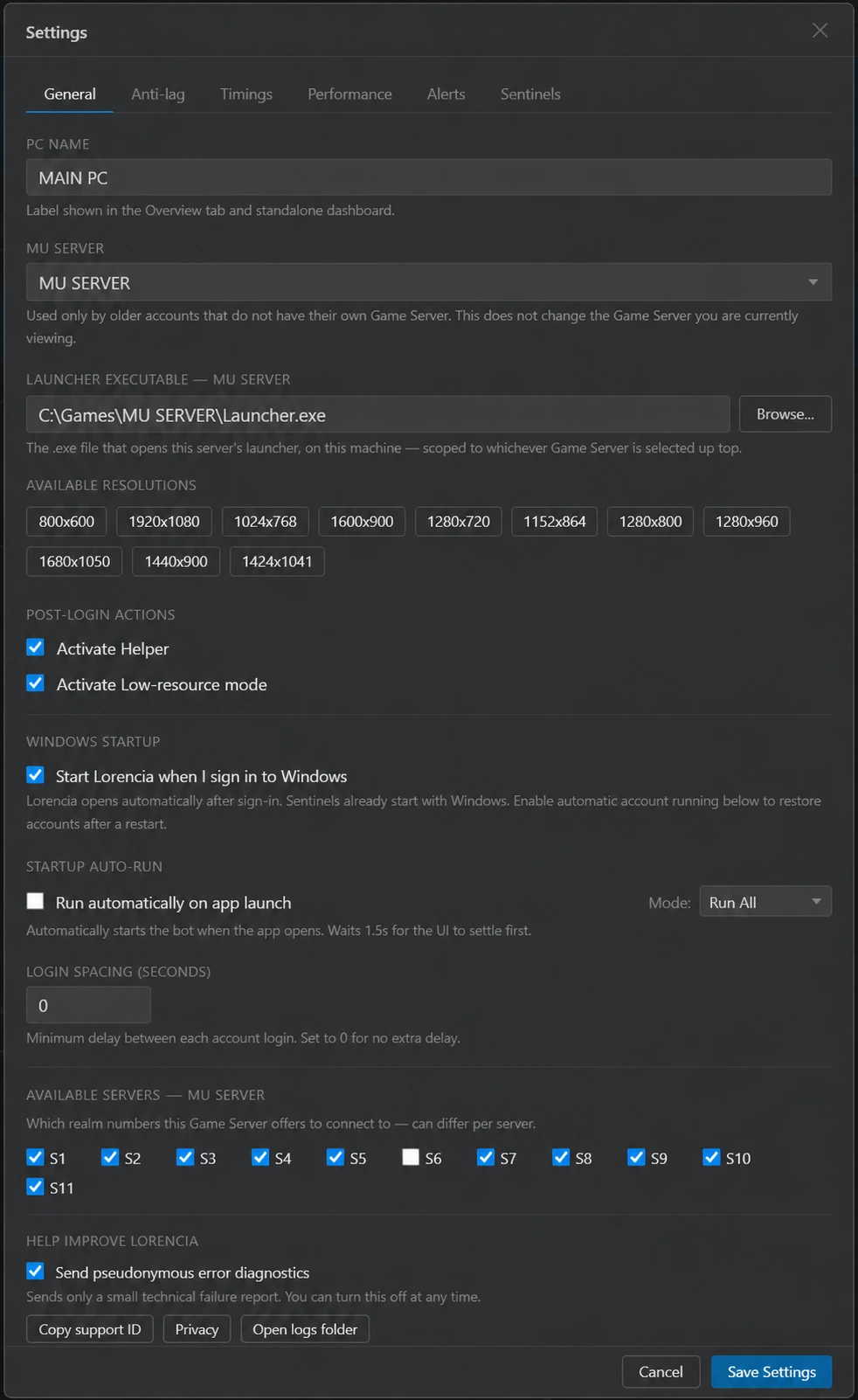
9. Troubleshooting checklist
- Wrong or offline account: verify the exact character name, current Game Server, server number, and slot.
- Action happens too early: increase the ready delay for that detected screen on the affected machine.
- Helper or Ctrl+F not detected: check the selected resolution, update Lorencia, and try once with low-resource mode turned off.
- Sentinel does not respond: confirm that its PC is online, Lorencia is open and updated, then wait for the current change to finish.
Still stuck? Use Support and tell us which PC and account were affected, the approximate time, what happened, and how to reproduce the problem.